In the previous articles in this series, I looked at knowing which .NET SDK is actually building an application and making sure that application can be built on a clean machine.
Now I want to start preparing an application for its next .NET upgrade.
There is some urgency around that for applications still running on older versions. As I write this, both .NET 8 and .NET 9 reach end of support on November 10, 2026.
.NET 10 is the current LTS release, and .NET 11 RC1 is already available.
That means there are plenty of applications where we need to start asking what an upgrade is going to involve.
My first instinct is not to start changing target frameworks and package versions.
I want to understand the application first.
And I want the newest tooling available to help me do it.
A Newer SDK Is More Than a New Target Framework
When we talk about moving an application to a new version of .NET, it is easy to focus on the target framework.
For example:
<TargetFramework>net8.0</TargetFramework>
eventually becoming:
<TargetFramework>net10.0</TargetFramework>
But installing a newer SDK does not automatically make that change.
The SDK is the development toolchain.
It contains the tooling we use to work with things such as:
- projects and solutions;
- target frameworks;
- NuGet packages and dependencies;
- project references;
- package vulnerabilities and deprecations;
- restores and dependency resolution;
- builds and MSBuild configuration;
- tests and test infrastructure;
- .NET tools;
- workloads;
- templates;
- runtimes and targeting packs;
- publishing and containers;
- compiler and language features;
- and automation around all of those areas.
A newer SDK can improve that toolbox even while an application continues targeting its existing version of .NET.
That distinction is important.
I do not have to upgrade an application just because I want access to newer development tooling.
.NET 10 Is a Good Example
.NET 10 added and improved SDK capabilities across several of these areas.
There are improvements around package and project-reference management, NuGet restore and auditing, .NET tools, testing with Microsoft.Testing.Platform, container publishing, command-line consistency, shell integration, and machine-readable CLI information.
I am intentionally not going deep into those commands here.
That is where I want to go next in this series.
The point for now is that if I am preparing an older application for an upgrade, there can be real value in having a newer SDK available before I change the application itself.
Think about the sequence this way:
Existing application
        |
        | still using its current configuration
        |
        v
Newer .NET SDK tooling
        |
        | inspect
        | query
        | restore
        | analyze
        | test
        v
Better understanding of the application
        |
        v
Decide what needs to change
        |
        v
Begin the upgrade
That is the workflow I want.
I would rather discover what makes up the application before I start changing it than discover those details one failure at a time during the upgrade.
Why Not Just Install the New SDK Normally?
I could.
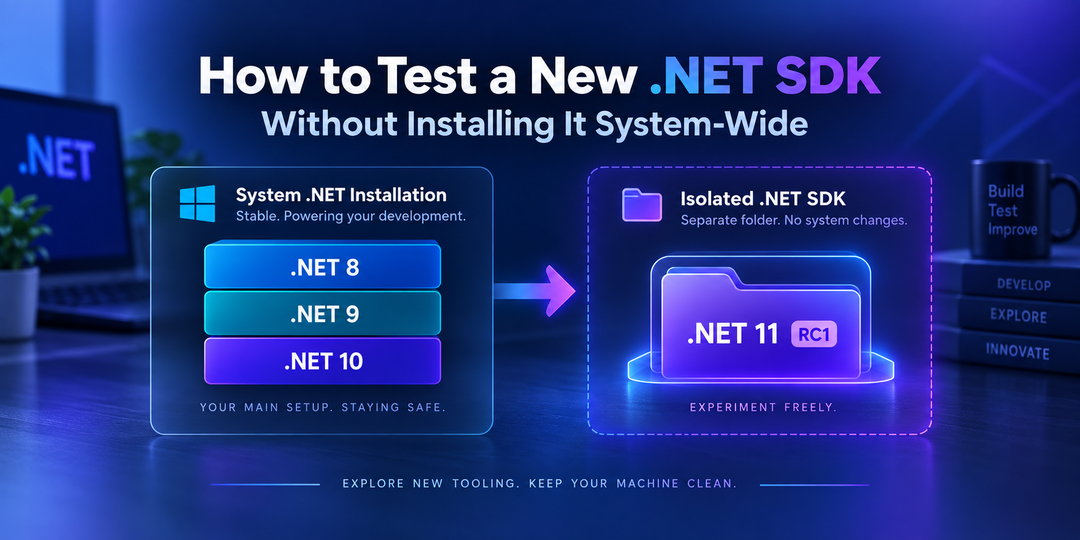
.NET supports side-by-side SDK installations, so there is nothing inherently wrong with installing a newer SDK alongside the SDKs already on a development machine.
For example, my normal Windows environment contained:
8.0.425
9.0.318
10.0.401
I could simply install .NET 11 RC1 and make it another SDK available through the normal dotnet host.
For many environments, that is the right answer.
But I am still evaluating it.
I do not necessarily want a preview or release candidate participating in normal SDK resolution yet.
I may also want to test multiple SDK versions, compare their behavior, or remove one when I am done.
So instead of this:
Normal .NET installation

8.0.425
9.0.318
10.0.401
11.0.100-rc.1.26425.128
I want this:
Normal .NET installation

8.0.425
9.0.318
10.0.401


Isolated SDKs

~/dotnet-sdks/
    11.0.100-rc.1.26425.128/
My normal dotnet command continues to represent my normal development environment.
When I want the newer SDK, I explicitly choose it.
Use an Exact SDK Version
I also want the experiment to be repeatable.
For this test, I used:
11.0.100-rc.1.26425.128
I do not want my setup to mean:
Install whatever the latest .NET 11 SDK happens to be today.
If RC2 appears, I want that to be another version I can evaluate separately.
That gives me the ability to keep multiple isolated toolchains:
dotnet-sdks/
    11.0.100-preview.7.26381.103/
    11.0.100-rc.1.26425.128/
    11.0.100-rc.2.xxxxx.xxx/
I can decide exactly which SDK I am using for a particular experiment.
Microsoft Already Supports Installing an SDK This Way
Microsoft’s dotnet-install scripts allow an SDK to be installed into a directory we choose.
On Windows, the installer supports:
-InstallDir
-NoPath
On Linux and macOS:
--install-dir
--no-path
Instead of installing into a normal location such as:
C:\\Program Files\\dotnet\\
I can keep isolated SDKs under my home directory:
Windows
C:\\Users\\<user>\\dotnet-sdks\\

Linux
/home/<user>/dotnet-sdks/

macOS
/Users/<user>/dotnet-sdks/
The SDK does not have to be added to PATH.
I can invoke that copy of dotnet explicitly when I want it.
Microsoft also documents using the install scripts for testing prerelease .NET SDKs locally.
I Ended Up Turning the Process Into a Small Tool
I started by doing this directly with Microsoft’s installation scripts.
That worked.
Once I tested the process on Windows and Linux, though, I found myself repeating the same setup and cleanup work:
- find the SDK version I want;
- see which SDKs are already installed normally;
- install the new SDK into its own directory;
- keep it off
PATH; - verify the installation;
- avoid letting a repository’s
global.jsoninterfere with SDK management; - and cleanly remove the SDK later.
So I wrapped that workflow in a small project:
It still uses Microsoft’s official dotnet-install scripts underneath. The project just handles the workflow around them.
On Windows with PowerShell:
irm https://raw.githubusercontent.com/infoconex/isolated-dotnet-sdk/main/isolated-dotnet-sdk.ps1 | iex
On Linux or macOS:
curl -fsSL https://raw.githubusercontent.com/infoconex/isolated-dotnet-sdk/main/isolated-dotnet-sdk.sh | bash
It lets me select a supported, development, or older .NET channel and then choose the exact SDK version.
It also shows whether a version is already installed normally or already exists as an isolated SDK.
The full usage belongs in the repository README.
The tool is not really the point of this article.
What matters is that I now have a newer development toolchain available without making it part of my normal SDK installation.
Verify That the Normal Environment Did Not Change
This was one of the behaviors I wanted to test rather than assume.
Before installing the isolated SDK, my Windows machine reported:
8.0.425 [C:\\Program Files\\dotnet\\sdk]
9.0.318 [C:\\Program Files\\dotnet\\sdk]
10.0.401 [C:\\Program Files\\dotnet\\sdk]
After installing and using .NET 11 RC1 in isolation:
dotnet --list-sdks
still returned:
8.0.425 [C:\\Program Files\\dotnet\\sdk]
9.0.318 [C:\\Program Files\\dotnet\\sdk]
10.0.401 [C:\\Program Files\\dotnet\\sdk]
The .NET 11 SDK was not added to that list.
To inspect the isolated installation, I explicitly called:
& "$HOME\\dotnet-sdks\\11.0.100-rc.1.26425.128\\dotnet.exe" --list-sdks
The same basic behavior held in the Linux environment I used for testing.
That is the separation I was looking for.
One global.json Behavior I Did Not Expect
Testing this against a real repository exposed one important detail.
I initially assumed that invoking an isolated dotnet executable meant SDK selection itself was isolated.
It does not.
The .NET CLI still performs normal SDK resolution, and the current working directory is part of that process.
The repository I used for testing contains:
{
  "sdk": {
    "rollForward": "disable",
    "version": "10.0.401"
  }
}
The isolated host contained only:
11.0.100-rc.1.26425.128
If I invoked the isolated executable’s:
dotnet --version
while standing inside that repository, the CLI still found the repository’s global.json.
It then tried to resolve:
10.0.401
against the SDKs available to that isolated host.
That SDK was not there, so SDK resolution failed.
The important distinction is:
The dotnet executable can be isolated.

SDK resolution still follows normal .NET rules.
Starting with .NET 10, global.json supports an sdk.paths array that lets us tell the .NET host where to look for SDKs outside the normal installation.
Before changing global.json, make a copy of the original file or otherwise make sure it can be restored exactly. This is a temporary change for the inventory work, not the upgrade itself.
For this temporary test, I want the repository to use only the isolated SDK. The temporary global.json can look like this:
{
  "sdk": {
    "version": "11.0.100-rc.1.26425.128",
    "rollForward": "disable",

    // Update this path for your OS:
    // Windows: C:\\\\Users\\\\<user>\\\\dotnet-sdks\\\\11.0.100-rc.1.26425.128
    // Linux:   /home/<user>/dotnet-sdks/11.0.100-rc.1.26425.128
    // macOS:   /Users/<user>/dotnet-sdks/11.0.100-rc.1.26425.128
    "paths": [
      "/home/<user>/dotnet-sdks/11.0.100-rc.1.26425.128"
    ]
  }
}
From the repository, I can then verify the selected SDK normally:
dotnet --version
and expect:
11.0.100-rc.1.26425.128
For my purposes, this is a temporary repository change.
I am not upgrading the application yet. I am temporarily giving the repository access to a newer SDK so I can use its tooling to understand the application.
When the inventory work is finished, restore the original global.json.
This Is Isolation, Not a Sandbox
There is another boundary worth being clear about.
This approach isolates the SDK installation.
It does not provide a completely isolated execution environment.
During my Windows testing, the first invocation of the new SDK ran the normal .NET first-time experience and installed an ASP.NET Core HTTPS development certificate.
The CLI can also create normal per-user state.
So:
isolated SDK installation
does not mean:
nothing outside this directory can change
If I needed that level of isolation, I would use something like a container or virtual machine.
For this use case, I only need the newer SDK to remain separate from the SDK installation my normal development environment depends on.
Removing the Experiment Is Straightforward
Because each SDK is installed into its own version-specific directory, it can also be removed independently.
Using the helper tool on PowerShell:
& "$HOME\\dotnet-sdks\\isolated-dotnet-sdk.ps1" `
    -Action Remove `
    -Version '11.0.100-rc.1.26425.128'
Or with Bash:
"$HOME/dotnet-sdks/isolated-dotnet-sdk.sh" \\
    remove \\
    11.0.100-rc.1.26425.128
The Real Benefit Is Having Better Tools Before the Upgrade
Installing another copy of a .NET SDK is not the interesting part.
What I wanted was access to newer tooling without first committing the application to a newer version of .NET.
That lets me separate two decisions:
Which tools do I want available?
from:
Which version of .NET should this application target?
Those do not have to happen at the same time.
If I am responsible for an application on .NET 8 or .NET 9 that needs attention before support ends, I can first bring a newer SDK into the process.
I can take advantage of improvements Microsoft has made to the SDK and CLI since the application’s current toolchain was released.
Then I can use those tools to understand what I actually have.
Only after that do I need to start changing the application.
That gives me a much better sequence:
Get the newer tooling
        |
        v
Inventory the existing application
        |
        v
Understand dependencies and risks
        |
        v
Decide what needs to change
        |
        v
Upgrade deliberately
The goal is not to use new tooling simply because it is new.
The goal is to give myself the best available information before making changes.
Next: Inventory the Application
Now I have the newer toolbox available.
The next step is to use it.
Before changing target frameworks, packages, project references, tools, workloads, build files, or test configuration, I want an inventory of the application as it exists today.
I want to understand things such as:
- the projects and solutions that make up the application;
- the target frameworks they currently use;
- package dependencies;
- project-to-project references;
- outdated, deprecated, or vulnerable packages;
- repository and local .NET tools;
- workloads;
- tests;
- build and MSBuild configuration;
- and other dependencies that may influence the upgrade.
Some of the tooling we will use has existed for several .NET releases.
Some capabilities have been added or improved in newer SDKs such as .NET 10.
That is exactly the point.
The application does not have to be upgraded before I can start taking advantage of a newer development toolbox.
In the next article, I want to use that toolbox to build a useful inventory before we change anything.