Built-in ASP.NET validation controls
ASP.NET has some nice validation controls built in that can help make validating forms much easier. Listed below are a few of the available controls.
RequiredFieldValidator – Ensures that the user does not skip a field that has some requirement for being selected or filled out.
CompareValidator - Compares a user’s entry against a constant value, against the value of another control (using a comparison operator such as less than, equal, or greater than), or for a specific data type.
RangeValidator - Checks that a user’s entry is between specified lower and upper boundaries. You can check ranges within pairs of numbers, alphabetic characters, and dates.
RegularExpressionValidator - Checks that the entry matches a pattern defined by a regular expression. This type of validation enables you to check for predictable sequences of characters, such as those in e-mail addresses, telephone numbers, postal codes, and so on.
All the above controls have you specify the ControlToValidate which can be any one of these types: DropDownList, FileUpload, ListBox, RadioButtonList, TextBox, HtmlInputFile, HtmlInputPassword, HtmlInputText, HtmlSelect and HtmlTextArea
When to use a CustomValidator
But what if you want to perform validation against a control type not listed or on multiple controls? Have no fear as the CustomValidator control allows you to write your own server side and client side validation logic and get as complex as you want.
All of the previously mentioned controls require you to specify the control you want to validate via the poperty ControlTValidate, however with CustomValidator you can leave it blank which then leaves you to specify logic server side and client side to perform any validation you like.
Example: Validating multiple controls
So let’s take this to the real world. Recently I was faced a scenario that could not be handled by the standard set of validation controls.
Example) A series of 5 independent checkbox controls and at least one of them was required to be checked. Plus if Other is selected then you must fill in the textbox.
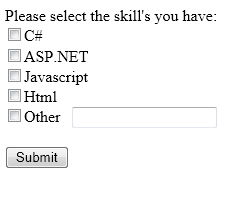
So the behavior should be that you must select at least one checkbox and if none selected then you will get an error “You must select at least one checkbox” and if the Other checkbox is selected then they must also supply text in the texbox field.
Here is a snippet from the ASPX source showing the controls and the CustomValidator
Code Snippet
Please select the skills you have:

<asp:CheckBox ID="checkBoxCSharp" runat="server" Text="C#" />
<asp:CheckBox ID="checkBoxASPNET" runat="server" Text="ASP.NET" />
<asp:CheckBox ID="checkBoxJavascript" runat="server" Text="JavaScript" />
<asp:CheckBox ID="checkBoxHtml" runat="server" Text="HTML" />
<asp:CheckBox ID="checkBoxOther" runat="server" Text="Other" />
<asp:TextBox ID="textBoxOther" runat="server" />

<asp:Button ID="buttonSubmit" runat="server" Text="Submit" />

<asp:CustomValidator
    ID="CustomValidatorSkillsYouHave"
    runat="server"
    ErrorMessage="You must select at least one skill"
    ForeColor="Red"
    OnServerValidate="CustomValidatorSkillsYouHave_ServerValidate"
    ClientValidationFunction="IsSkillsYouHaveValid"
    ValidateEmptyText="true" />
Notice that we do not have specified ControlToValidate. As well we have defined a OnServerValidate method that will get called when the page is posted back to the server.
Server-side validation
Here is the server side method
Code Snippet
protected void CustomValidatorSkillsYouHave_ServerValidate(
    object source, ServerValidateEventArgs args)
{
    args.IsValid = checkBoxASPNET.Checked ||
                   checkBoxCSharp.Checked ||
                   checkBoxHtml.Checked ||
                   checkBoxJavascript.Checked ||
                   checkBoxOther.Checked;

    if (!args.IsValid)
    {
        ((CustomValidator)source).ErrorMessage =
            "You must select at least one skill";
    }
    else if (checkBoxOther.Checked &&
             string.IsNullOrEmpty(textBoxOther.Text.Trim()))
    {
        args.IsValid = false;
        ((CustomValidator)source).ErrorMessage =
            "You must supply a text description when selecting other";
    }
}
In this method we check to see if at least one checkbox was checked and if not set the args.IsValid = false which will cause the validator to fail. If the first test is passed we check to see if the Other checkbox is checked and if so ensure that the texbox was filled out. If not then we set args.IsValid = false but we also change the error message to provide a better description of the failure.
Client-side validation
However the above only happens when posted back to the server. We also want to provide some client side validation in order to prevent a post back to the server if the same type of validation fails on the client side.
To do this we specify the ClientValidationFunction property on the CustomValidator to point to our JavaScript function to perform the client side validation. The ASPX snippet above includes this attribute and ValidateEmptyText. In this case I created a JavaScript function called IsSkillsYouHaveValid as shown below.
Code Snippet
<script type="text/javascript">
function IsSkillsYouHaveValid(source, args) {
    // Use Web Forms-generated client IDs (these may include naming containers).
    var checkBoxCSharp = document.getElementById('<%= checkBoxCSharp.ClientID %>');
    var checkBoxASPNET = document.getElementById('<%= checkBoxASPNET.ClientID %>');
    var checkBoxJavascript = document.getElementById('<%= checkBoxJavascript.ClientID %>');
    var checkBoxHtml = document.getElementById('<%= checkBoxHtml.ClientID %>');
    var checkBoxOther = document.getElementById('<%= checkBoxOther.ClientID %>');
    var textBoxOther = document.getElementById('<%= textBoxOther.ClientID %>');

    var anySelected = checkBoxCSharp.checked || checkBoxASPNET.checked ||
        checkBoxJavascript.checked || checkBoxHtml.checked || checkBoxOther.checked;
    var message = !anySelected
        ? 'You must select at least one skill'
        : checkBoxOther.checked && !textBoxOther.value.trim()
            ? 'You must supply a text description when selecting other'
            : '';

    args.IsValid = message === '';
    source.errormessage = message;
    source.textContent = message;
}

function ValidateSkillsYouHave() {
    var validator = document.getElementById('<%= CustomValidatorSkillsYouHave.ClientID %>');
    if (validator && typeof ValidatorValidate === 'function') {
        ValidatorValidate(validator);
        if (typeof ValidatorUpdateDisplay === 'function') {
            ValidatorUpdateDisplay(validator);
        }
    }
}
</script>
So with this extra bit of client side code we will now perform client side validation that if failed will prevent the page from being posted back to the server, thus avoiding an unnecessary round-trip.
Revalidate as the user corrects input
BUT we are not done yet. I am picky and one of the things I don’t like about the following solution so far is that when you correct the validation failure by for instance selecting at least one checkbox or by filling out the textbox if you have selected Other is that the error message still appears until you click the submit button. I want the user to immediately know once they have correct the issue that they have satisfied the validation.
The ValidateSkillsYouHave helper is included alongside the client validation function above. Call it from the five checkboxes’ client-side onclick handlers and from the Other textbox’s oninput handler. This triggers ASP.NET Web Forms validation again and refreshes the validation display.
The examples use <%= control.ClientID %> so they work even when Web Forms changes client-side element IDs inside naming containers.
Now when we submit the form and the validation fails and the user goes and selects at least one checkbox then the validation will be re-evaluated and immediately update the display to remove the validation error when it passes.
I know this was a bit of extra work but when you have a big form and you have implemented RequiredFieldValidators etc.. in which the error message goes away when you fill in the field but your custom validators do not it starts to stand out and the extra little bit of work provides a better end user experience.
Now much of the Javascript code written about could have been done much easier using JQuery and no guarantee the javascript written is cross browse safe. I used IE8 in all my testing and would personally recommend implementing a Javascript library like JQuery that abstracts the browser differences out. However I wanted to keep it simple without adding the need to explain the JQuery syntax.